Green Screen Paper Animation for Video Editors
Green screen paper animation is useful when you want the paper effect as an overlay, not a finished standalone clip. Exporting with a keyable background makes it easier to use the result in CapCut, Premiere, After Effects, or another editor.
What green screen export is for
This workflow creates paper animation that can be removed from its background later. It is different from transparent PNG because the output is meant for moving video compositing.
3-Step Workflow
Step 1
Create the paper animation
Start from a photo, product shot, or cutout subject and generate the animated paper motion.
Step 2
Choose green screen output
Use green screen when the animation needs to be keyed in another video editor.
Step 3
Composite in your editor
Apply chroma key, place the paper animation over your footage, and adjust timing in the final timeline.
Result Preview
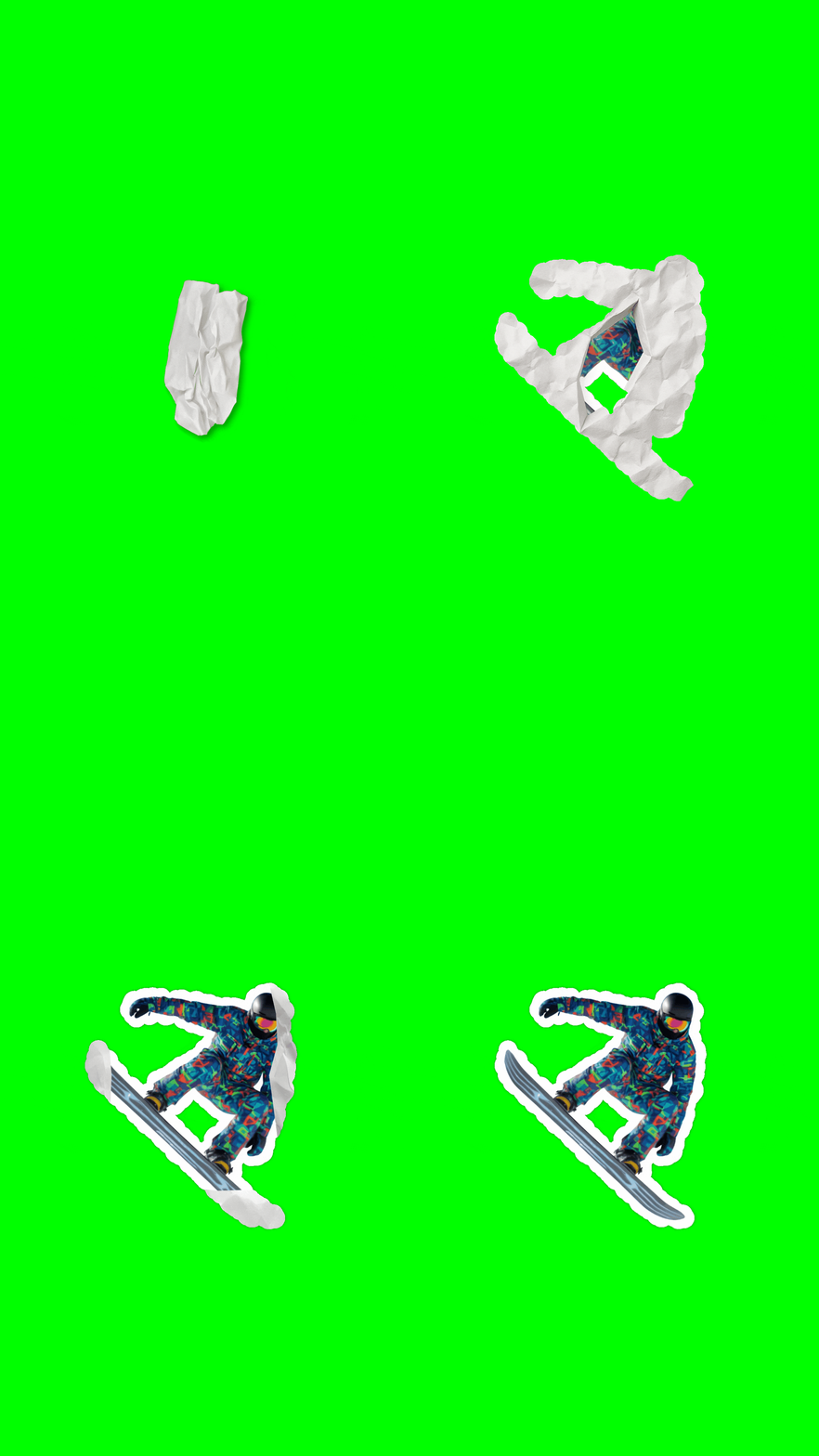
A green screen paper animation preview designed for chroma key workflows in video editors.
Green screen workflow tips
- Use green screen for moving clips and transparent PNG for static design assets.
- Avoid green subjects when possible; they can be harder to key cleanly.
- Keep motion short and readable if the clip will appear over busy footage.
- Export a quick GIF preview before committing to the final MP4 if a teammate needs to approve the motion.
Why this page is built for video editors
- It explains when green screen is better than transparent PNG.
- It connects paper animation with chroma key editing instead of treating export as an afterthought.
- It gives editors a reusable paper animation asset for multiple scenes.
Best Use Cases
Export Options
- Green screen MP4 for chroma key workflows.
- GIF for quick approval previews before editing.
- Transparent PNG when you need a static companion graphic.
FAQ
What is green screen paper animation?
It is paper animation exported on a green background so an editor can remove the background with chroma key.
Can I use the output in CapCut or Premiere?
Yes. Import the MP4, apply chroma key, and place the animation over your footage.
Is green screen better than transparent PNG?
For moving video, green screen is often easier to key. For static graphics, transparent PNG is usually better.
Should I remove the background before green screen export?
If the subject needs cleaner edges, background removal can improve the paper animation before export.
Can I make green screen paper animation from a product photo?
Yes. Product photos work well when the subject is clear and the final clip needs to appear in multiple video scenes.
Related Guides
Create green screen paper animation
Generate a paper animation clip that is ready for chroma key editing.